
This post was originally published on this site.
You can now manage your WordPress.com site from ChatGPT using the new WordPress.com ChatGPT plugin.
Set it up once, then talk to your site to publish posts, moderate comments, check traffic, update media, and handle the small jobs that start after the writing ends.
After you add the plugin, type @WordPress.com in any chat and hand off those chores to ChatGPT.
Publish your words without the busywork
You wrote the post, maybe in your notes app, maybe in a doc, maybe in a voice note. Getting it live on your blog can be time-consuming, but with the ChatGPT plugin, you just need to ask.
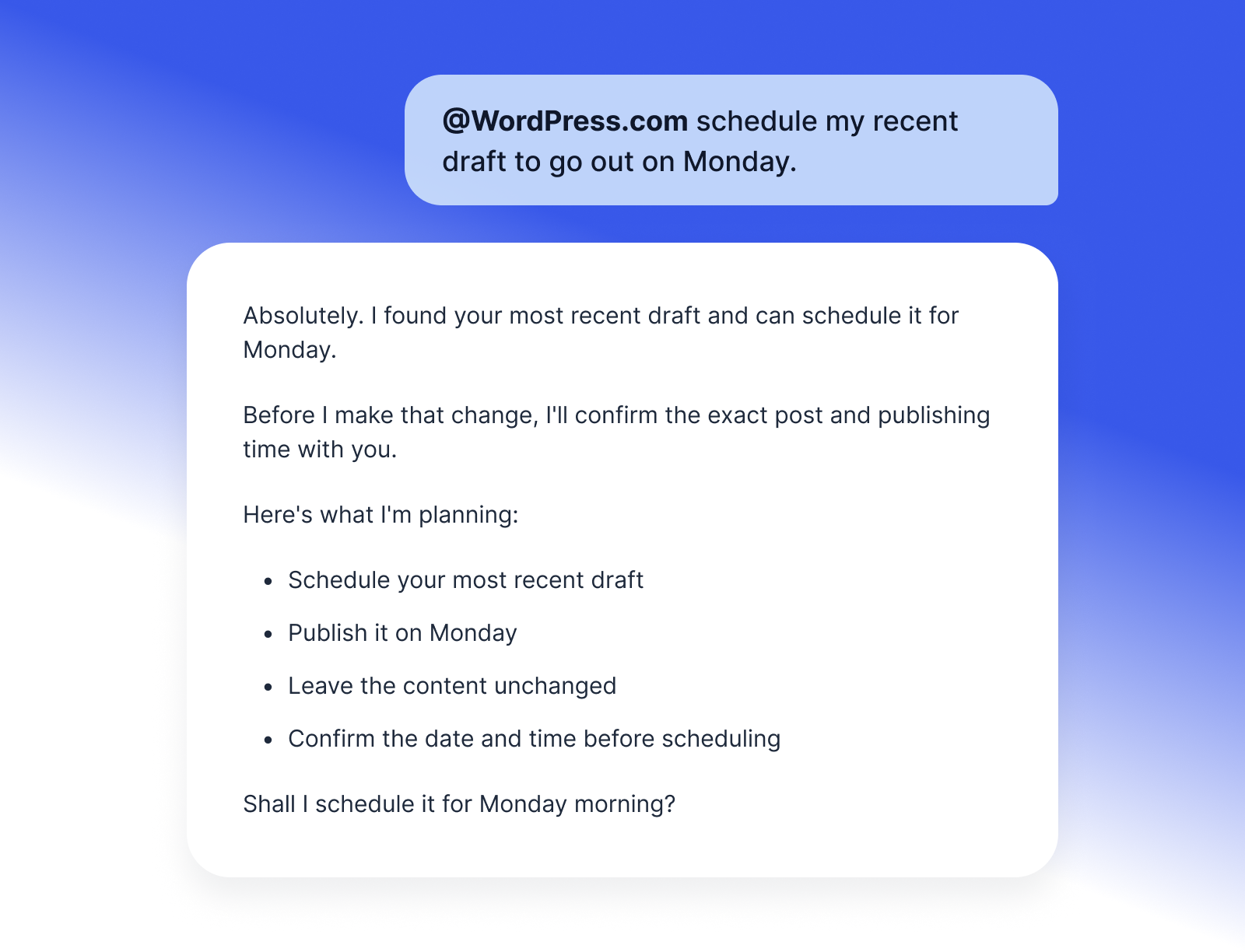
Try running some of these prompts directly in ChatGPT:
Your content stays yours, and ChatGPT helps with the formatting, scheduling, and the clicking around.
Run your site by asking
Once connected, ChatGPT can read your stats, your comments, your media library, and your site’s activity log, so questions about your site get answered where you asked them.
Here are a few prompts you can use:
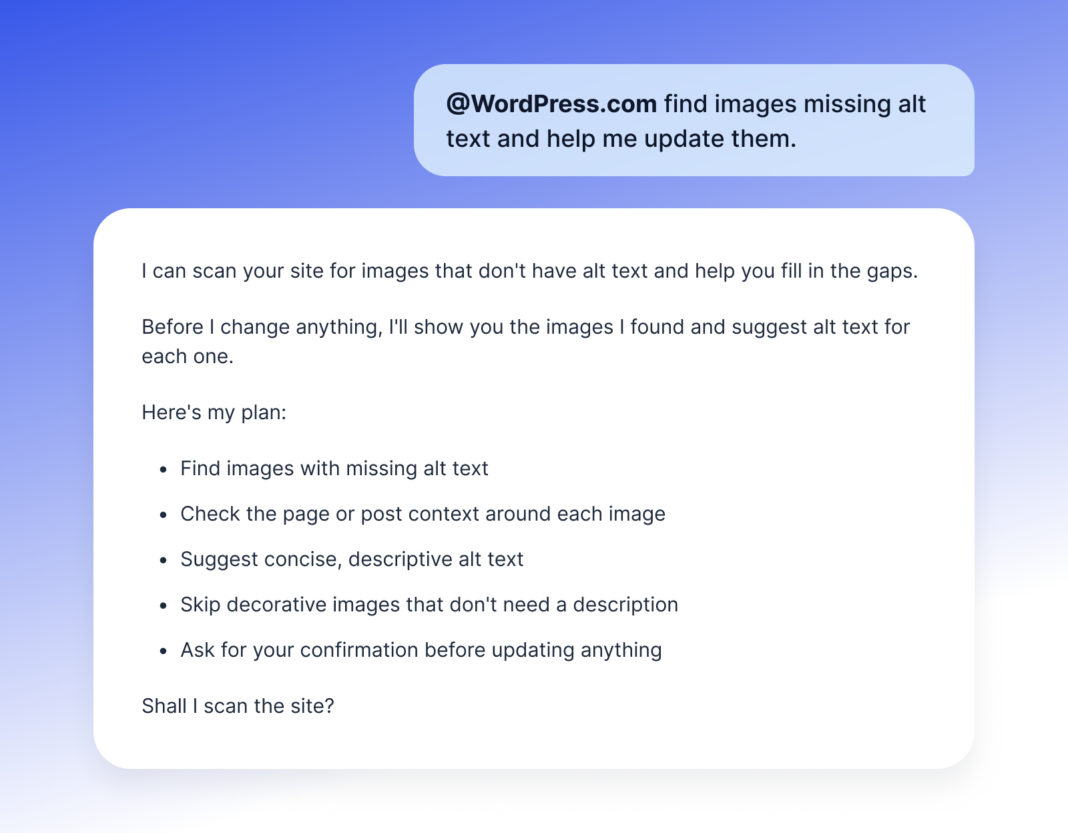
Alt text deserves a special mention here. It’s the accessibility task everyone means to do and almost nobody does, because doing it means setting the alt text one image at a time.
Now you can set alt text through a conversation with ChatGPT, and your readers who use screen readers get a better experience for it.
Change your site, conversationally
The plugin can make changes across your site, from adding pages and updating site settings to working with your existing design.
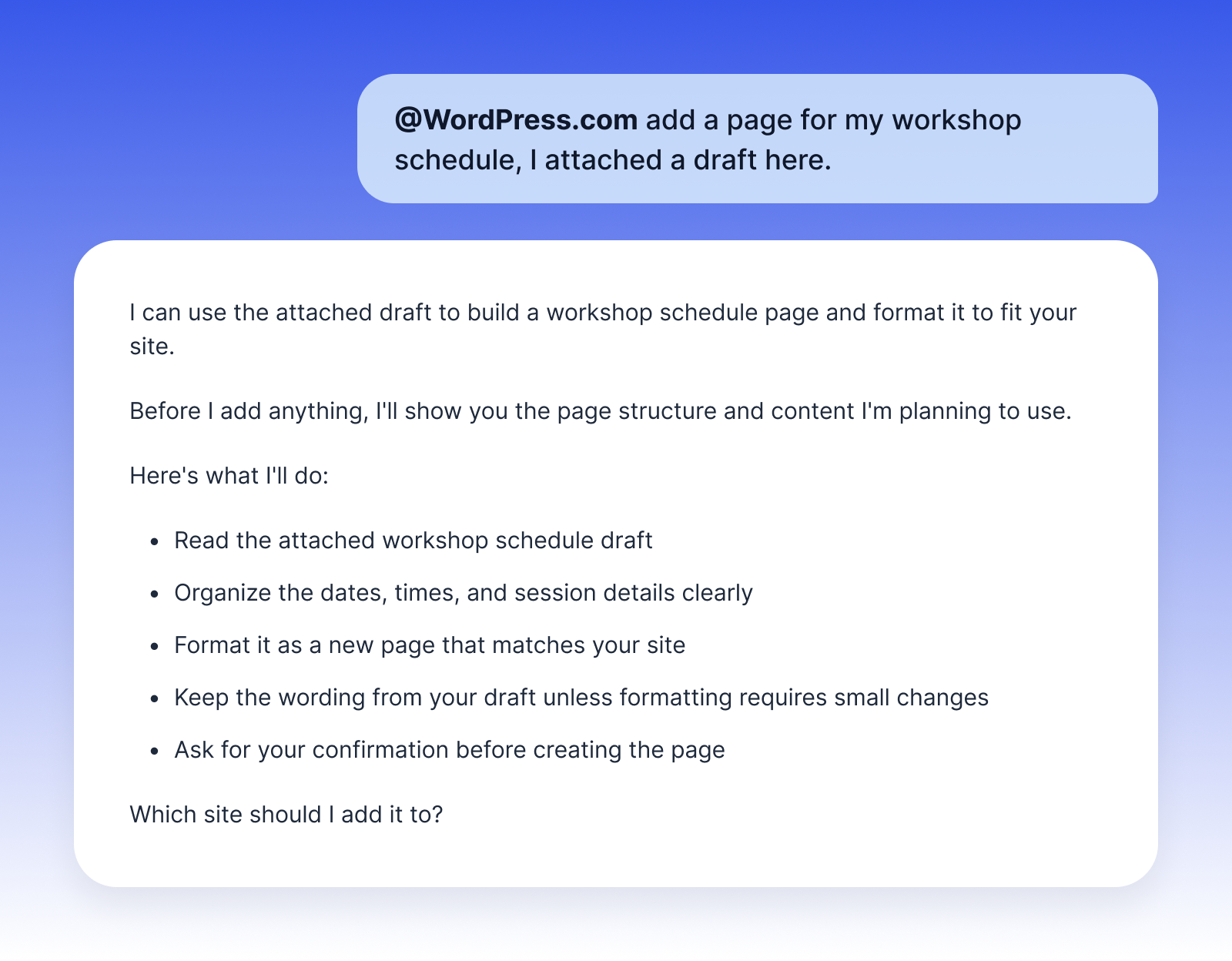
Try prompts like:
You stay in control
The WordPress.com ChatGPT plugin is optional and off by default. When it’s enabled, ChatGPT has to ask you before making changes to your site.
If it’s about to publish or edit content, launch your site, change settings, or delete something, you’ll see what it plans to do before anything changes.
New posts and pages start as drafts by default, and for anything that publishes, edits, launches, or trashes something, ChatGPT describes exactly what it’s about to do and waits for your confirmation.
Connect your site to ChatGPT
Getting started only takes a few steps and after that, WordPress.com is available whenever you type @WordPress.com in ChatGPT.
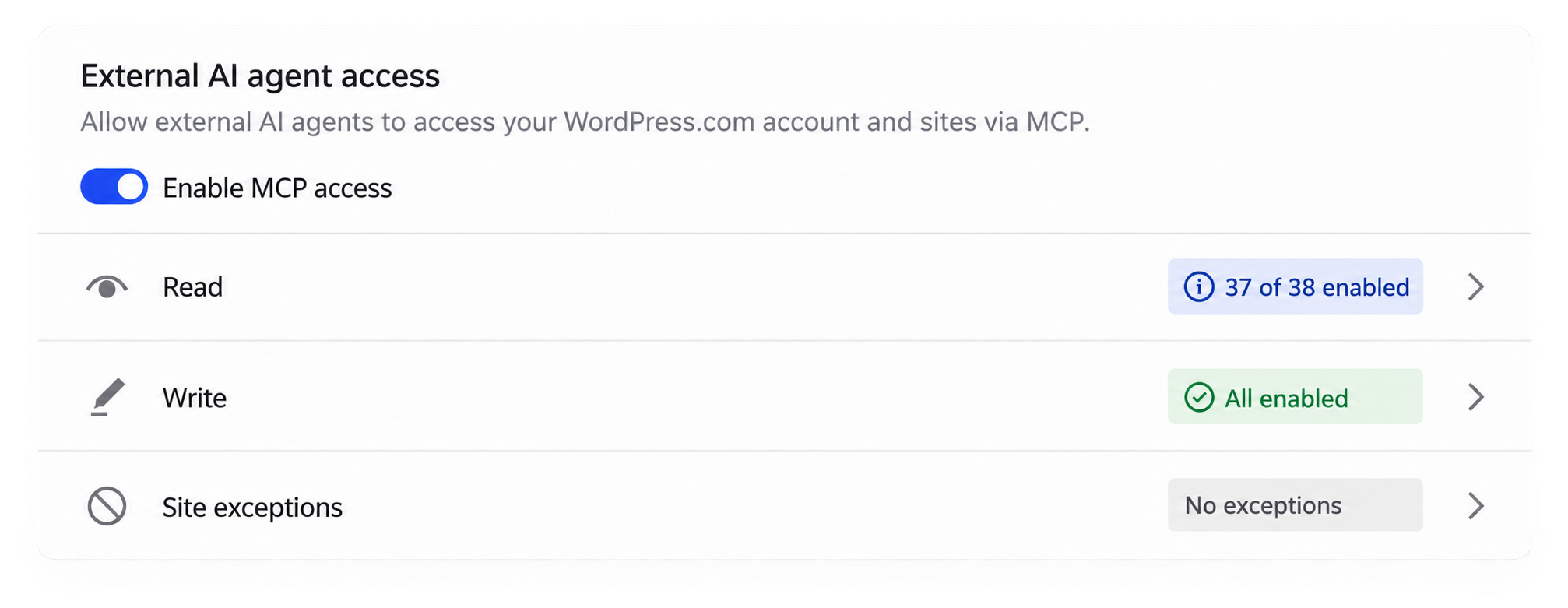
First, you’ll need to enable MCP access on your WordPress.com account. This enables AI agents like ChatGPT to use the WordPress.com tools you choose to enable.
Then, open WordPress.com in ChatGPT, select “Install plugin,” sign in with your WordPress.com account, and approve the connection. Then type @WordPress.com and hand off the first chore.
The full setup guide is in our support docs, and if you’d rather connect Claude or another AI assistant, that works too.
MCP access is included with every paid WordPress.com plan, and Free sites also get this during the first 30 days after creation.
Your writing stays yours, and now you can work with your site without having to go to it. Writing was always the fun part anyway.