
Black Friday is one of those rare moments when people arrive on your site ready to act.
You’ve got the offer, the audience, and a reason for them to pay attention – now you want all that work to turn into sales, bookings, subscriptions, or signups.
The last stretch isn’t about rebuilding your site or inventing another promotion. It’s about making sure the campaign works as well for your customer as it does in your head.
Here are 10 practical checks that cover the whole customer journey to make the path from promotion to confirmation as clear and reliable as possible.
Your Black Friday checklist:
- Make your Black Friday offer easy to understand
- Send people to the offer they clicked
- Test the deal, not just the page
- Try the whole thing on your phone
- Check how your campaign impacts page speed
- Give people a reason to come back
- Clear up the doubts that kill a sale
- Make sure you know what worked
- Decide what you’ll do if something goes wrong
- Run a full Black Friday dress rehearsal
1. Make your Black Friday offer easy to understand
Black Friday doesn’t have to mean 30% off everything in sight. In a WooCommerce Black Friday survey of 249 store owners, 27% chose bundles or buy-more-save-more offers as their main promotional strategy, while 18% chose tiered discounts (spend $100, get 10% off)
A bonus or limited set of bookings might suit your business better than a sitewide discount.
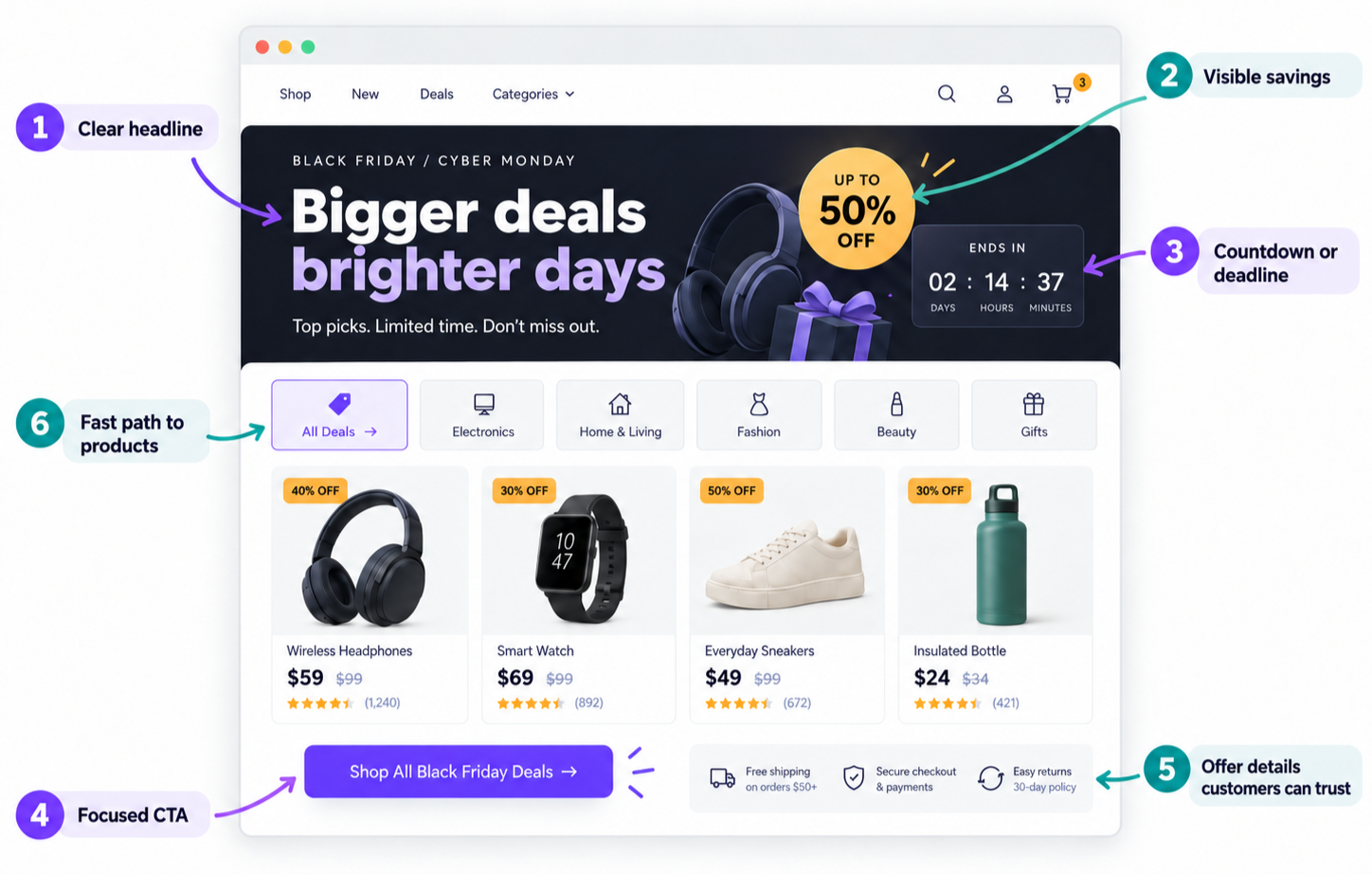
If you need a paragraph to explain the deal, it’s probably doing too much. Someone should be able to glance at it and understand three things: what they get, what they pay, and when it ends.
Then check the numbers and limits. Does free shipping erase your margin? Can you fulfill the orders or appointments? Set exclusions, quantities, and dates around what you can deliver.
2. Send people to the offer they clicked
You’ve persuaded someone to click. Let’s give them what they came for.
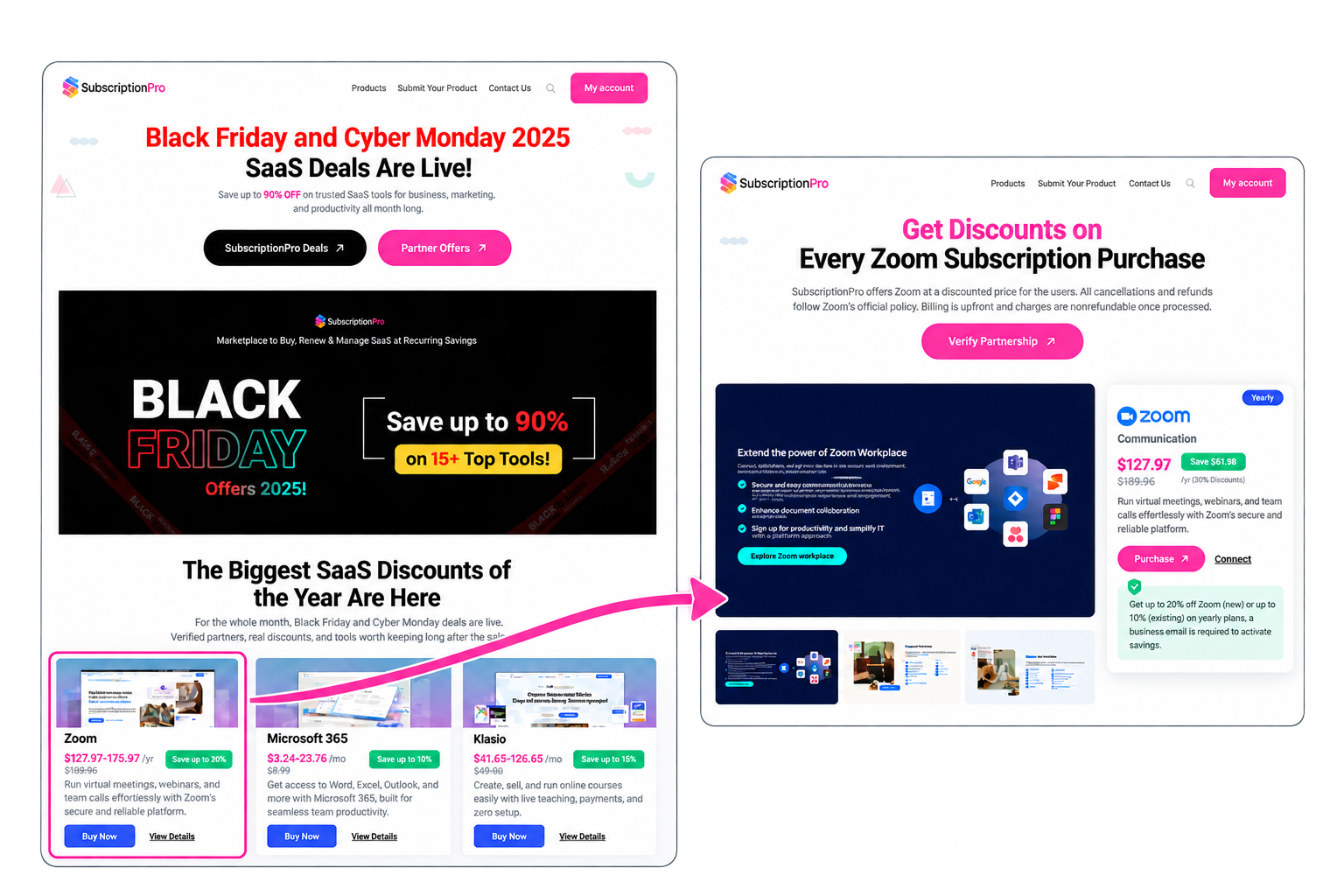
An email about a bundle should open that bundle. A sale covering several products can lead to a collection. Each message needs a destination that delivers on its promise.
Put the offer, price, dates, and conditions near the top, with a specific button: “Shop the bundle” or “Book your place.”
Then check that the promise survives the click. Prices, end dates, and codes should agree across the email, social post, and page.
3. Test the deal, not just the page
It’s surprisingly easy for a sale to look right while charging the wrong price.
For instance, a discounted price might display correctly on the product page while checkout still uses the original price for one size or variation. Nothing looks broken until someone tries to buy.
So don’t admire the finished offer – try to break it:
- Switch things up: Pick another size, variation, bundle, or service option. Does the price still make sense?
- Try the awkward combination: Add something that shouldn’t qualify for the deal. Throw in another coupon you already use. Make sure your discounts aren’t accidentally being too generous…or refusing to work at all.
- Look at the number that matters: The promotional price is nice. The amount someone is actually asked to pay after shipping, taxes, fees, and discounts is the real test.
- See what happens next: Finish the purchase, booking, or signup. Does the confirmation arrive? Does it contain the right details? Can the customer actually access what they bought?
If you’re collecting leads instead, submit your own form. Then check the inbox. A cheery “Thanks, we got it!” screen doesn’t help much if the message itself disappears into the void.
One handy shortcut: payment test modes let you run through checkout without charging a real card. WooPayments test mode, for example, can simulate successful and failed payments before real customers arrive.
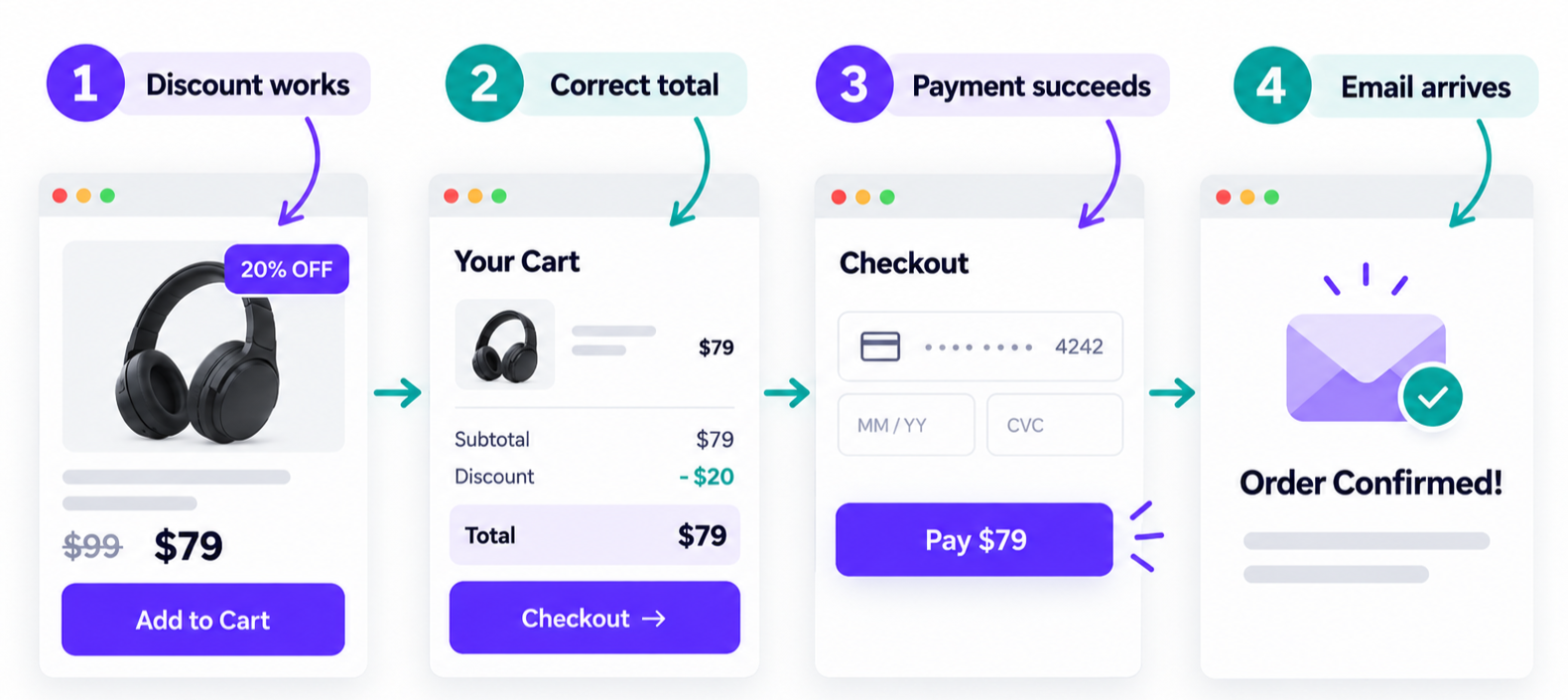
4. Try the whole thing on your phone
A page can look great on your phone and still be awkward to buy from. That’s why the mobile preview is a starting point, not the final check.
Adobe found that 56% of U.S. online holiday transactions in 2025 happened on smartphones. This deserves more than a glance at the layout.
Follow the link you’ll share through to purchase or booking confirmation.
Try these QA questions:
- Can you read the offer without zooming in?
- Are product options, form fields, and buttons comfortable to use?
- Do pop-ups cover anything you need to see or tap?
Nearly half of store owners Woo surveyed offered express checkout. Test any wallet or express-payment buttons you offer on a compatible phone, too.
If you catch yourself thinking, “I’ll just finish this on my laptop,” you’ve found something worth fixing.
5. Check how your campaign impacts page speed
A hero image, video, and countdown can arrive together on the page you most need to be quick. A third of store owners Woo surveyed made website performance their top preparation priority.
Run the public offer and product pages through the WordPress.com Speed Test, before and after adding campaign extras.
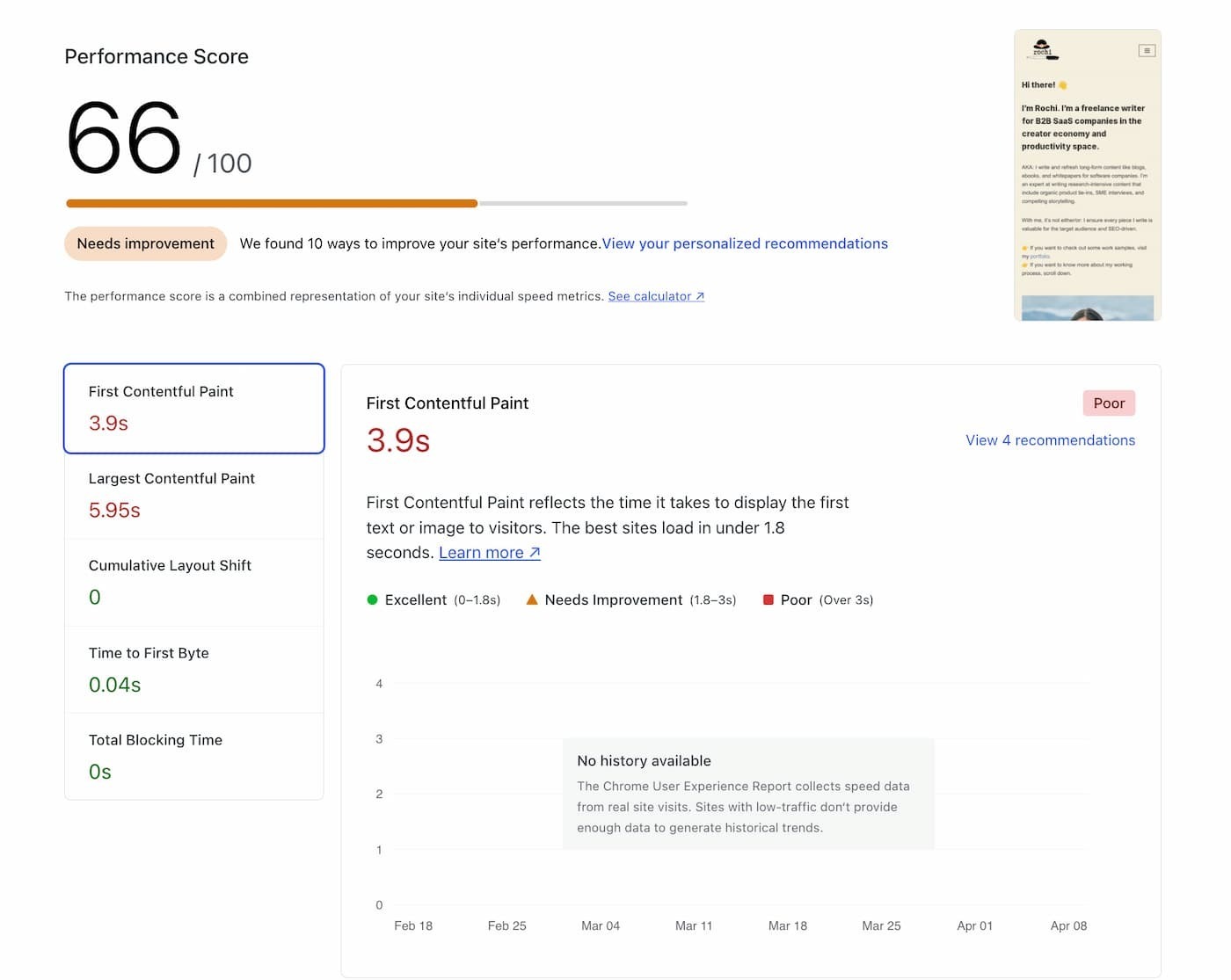
WordPress.com manages hosting, built-in caching, a global content delivery network, and automatic scaling for traffic spikes. You don’t need another page-caching plugin. Focus on what your images, embeds, and plugins add.
| If you notice… | Look at… |
| The main content takes a while to appear | Large campaign images, video, or other media near the top of the page. |
| The page appears but feels slow to respond | New plugins, pop-ups, countdowns, chat, or third-party scripts. |
| Buttons or text jump around while loading | Embeds, ads, banners, or other elements loading late. |
WordPress.com Business and Commerce customers can also use the Hosting Dashboard performance report. Compare mobile and desktop; this checks page speed, not simultaneous-visitor capacity.
6. Give people a reason to come back
“On sale now” only gives people one reason to look. Prepare a launch message, a useful demonstration or customer example, and a genuine deadline reminder.
Store owners were most likely to point to email (23%) and organic social (21%) as effective holiday channels. Start with the audience you already have — and check what they’re already receiving:
| Existing message | Before the promotion |
| Welcome email | Check whether its code combines with the sale, and explain any restrictions. |
| Abandoned-cart reminder | Check the linked product and discount will still be available when it is sent. |
| Post-purchase message | Give useful next steps; exclude buyers from repeat sale reminders where your tool supports it. |
Point homepage banners, relevant existing pages, and social posts toward the offer. Publish early, verify your site in Search Console, and inspect the offer URL for indexing problems.
Google can take days or weeks to crawl a page and neither verification nor an indexing request guarantees a ranking.
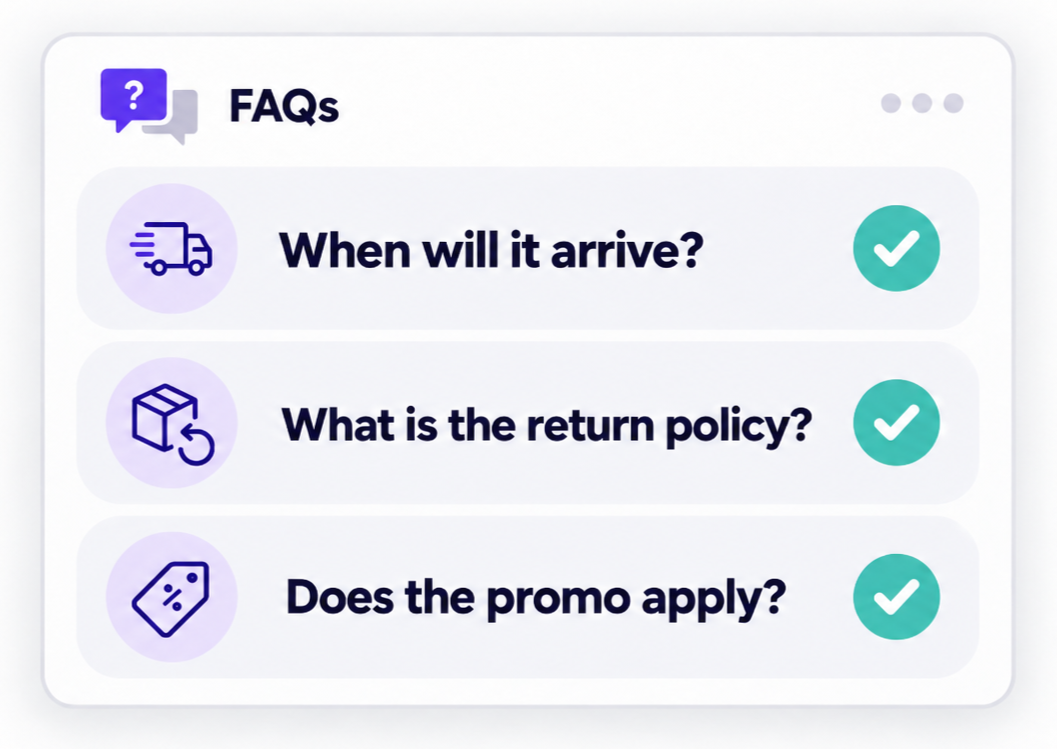
7. Clear up the doubts that kill a sale
A 30% discount stops feeling like a bargain when $18 shipping suddenly appears at checkout.
Baymard’s U.S. shopper research identifies three reasons worth addressing before someone pays:
| Reason given | Shoppers reporting this reason | What your page should make clear |
| Extra costs were too high | 40% | The real cost: shipping, fees, minimum spend, and anything else that changes the price. |
| Delivery was too slow | 20% | When it will actually arrive — an estimated date is more useful than “ships in 3–5 days.” |
| They didn’t trust the site with their card details | 19% | Who they’re buying from, how they can get help, and a payment experience that feels consistent and legitimate. |
For bookings or subscriptions, show the full price, when access starts, and any renewal cost. Give short answers near the decision, with links to policies and contact details.
8. Make sure you know what worked
A busy traffic chart is satisfying. Knowing which email brought in paying customers is far more useful for your next promotion.
Say your email generates more profitable orders than social, while bundles outsell individual items. That gives you a direction to test for November – not proof to abandon social. Compare visits, completed sales, and costs, not traffic alone.
Nearly a third of store owners Woo surveyed used historical sales data to shape their plans. Set up measurement now so your Black Friday results can inform the rest of the holidays.
UTM parameters (labels added to campaign links) help separate the traffic:
- Campaign: Use black_friday_2026 across the promotion.
- Source: Distinguish your newsletter from Instagram.
- Content: Use utm_content to separate the launch email from the closing reminder.
Your final CTA should look something like this:
https://yourwebsite.com/black-friday/?utm_campaign=black_friday_2026&utm_source=newsletter&utm_medium=email&utm_content=launch_email
WordPress.com Stats shows page views and clicks; completed orders or bookings need their own tracking. Follow a tagged link through a test conversion and verify both. Remember: A click on “Buy” doesn’t count as a purchase.
9. Decide what you’ll do if something goes wrong
You don’t need a disaster plan for every possible Black Friday mishap. You do want to know your first move if one of the moving parts goes sideways.
Think through the problems most likely to derail your campaign before you’re trying to solve them with customers waiting.
| If this happens… | Do this first |
| Your main product sells out | Point people toward the next-best option and update the promotion. |
| Shipping starts slipping | Change the delivery estimate before more orders come in and tell affected customers. |
| Your discount or checkout breaks | Pause the promotion, undo the change, and test it again before sending more traffic. |
| A last-minute site change causes trouble | Work out what changed and get back to the last version that worked. |
The point here isn’t to predict every problem. It’s to avoid making the first decision while the problem is already happening.
The WordPress.com Activity Log can help you see what changed, while Business and Commerce plan backups give you a route back if you need one.
And once the campaign is close? Resist the urge to squeeze in that clever redesign, shiny new integration, or “tiny” improvement.
10. Run a full Black Friday dress rehearsal
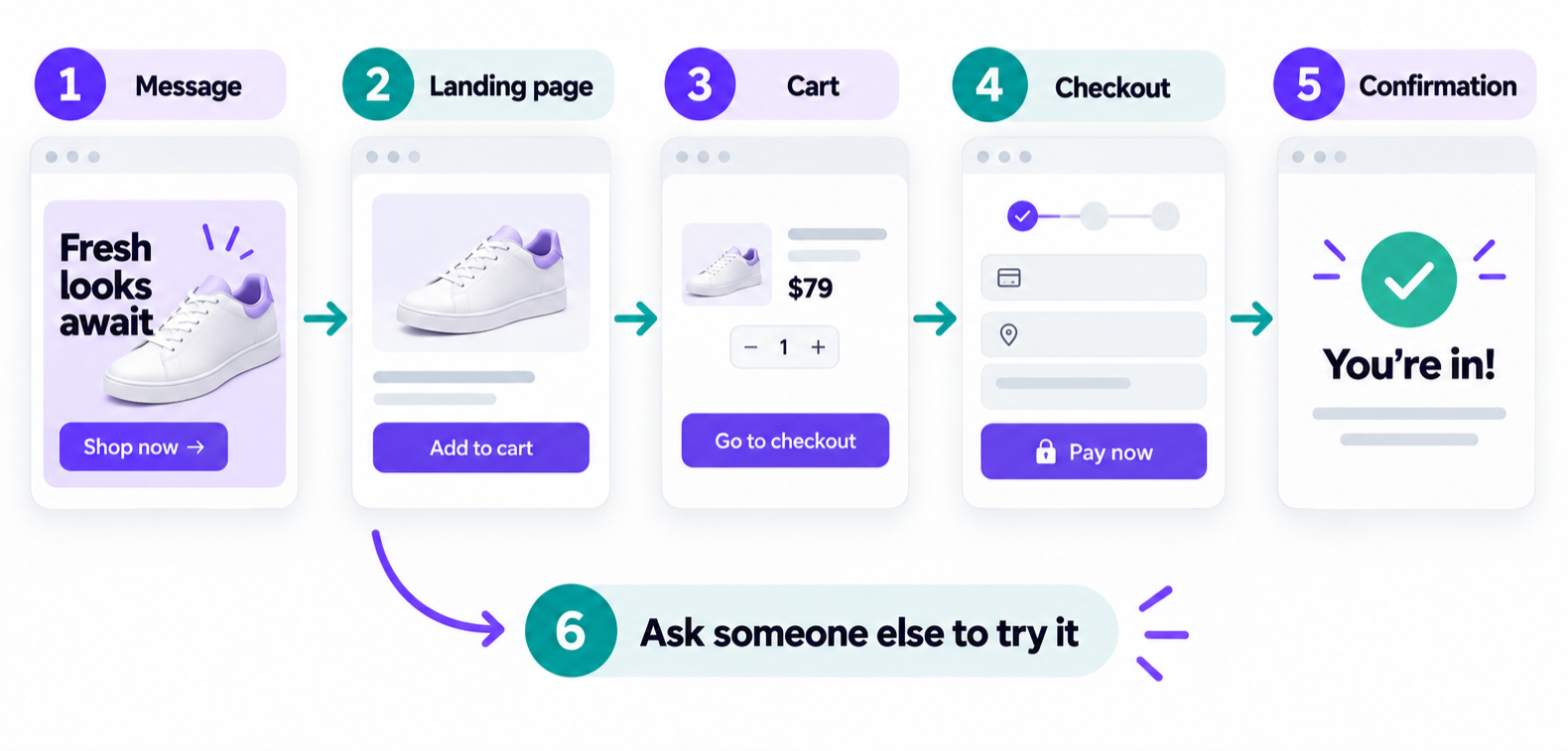
You’ve checked the pieces. Now take one uninterrupted trip from the message to the confirmation.
- Start with the actual message: Send yourself the email, then open its link while logged out.
- Complete the transaction: Choose an option, apply the code, and check the total in test mode. Try a declined test payment, too — can you recover and finish?
- Go beyond confirmation: Open the receipt, booking details, or download. Check you receive what was promised.
- Check your side: Find the order or inquiry, its notification, and the campaign tracking.
- Repeat on your phone: Follow the same link through to confirmation. Retest fixes.
- Restore launch settings: Remove test orders, check stock and bookings, and turn payment test mode off before the promotion.
Then ask someone unfamiliar with your site to try it without your help. If you find yourself explaining where to click, that’s your final clue about what needs attention.
Turn Black Friday into more than one busy weekend
By the time Black Friday comes around, you shouldn’t be adding more to your campaign. You should be taking the friction out of it.
The offer should be clear, the promotion should lead to the right place, and the whole journey from click to confirmation should work on any device.
That’s the thread running through all ten checks: don’t test whether your campaign looks finished. Test whether someone can actually use it.
If selling online is becoming a bigger part of your business, explore what you can build with WordPress.com Commerce.